Connect Claude to the Uiprobe MCP server to compare a Figma frame with a live webpage from a chat or a coding session. Claude runs the probe, waits for the result and reads the findings back to you. In Claude Code, it can then fix the differences in your code and run the probe again.
Once Uiprobe is connected, you can ask Claude to:
Claude changes its menus and settings regularly. These steps were checked in October 2026, so a label or menu may look slightly different for you. If you can't find a step, contact support@uiprobe.io and we'll help you connect.
Add Uiprobe once at claude.ai. It is then available in the Claude desktop app too, and in Claude Code when you sign in to Claude Code with the same Claude account.

https://app.uiprobe.io/mcp
If you use Claude in a Team or Enterprise organization and you can't add a custom connector, ask your organization's owner to add Uiprobe for everyone.
If you already added Uiprobe at claude.ai and Claude Code is signed in with the same Claude account, skip this: Uiprobe is already there. Run /mcp to check.
Otherwise, add it from your terminal:
claude mcp add --transport http --scope user uiprobe https://app.uiprobe.io/mcp. The --scope user part makes Uiprobe available in all your projects. Leave it out to add Uiprobe to the current project only./mcp. Select uiprobe and choose Authenticate.Ask Claude for what you need. For example:
In Claude Code, you can also ask:
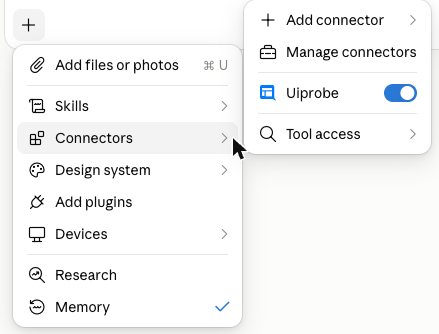
At claude.ai and in the desktop app, Uiprobe is switched on for new chats once it's connected. To switch it off for a chat, click + in the message box, open Connectors and turn off Uiprobe.
Copy the Figma link from the frame itself: select the frame in Figma and press Cmd+L (Ctrl+L on Windows). A link to the whole file doesn't tell us which frame to compare.
We open the page over the internet, the way any visitor would, so we can't reach localhost, a private network or a VPN-only address.
In Claude Code, give Claude the local address. Claude tells you what it will run and asks you to confirm before it starts your dev server or opens a free Cloudflare tunnel to your page. Once you agree, it runs the probe on the tunnel address and closes the tunnel when the result is in. If cloudflared isn't installed, Claude asks you to install it. On a Mac, run brew install cloudflared.
At claude.ai and in the desktop app, Claude can't reach your computer, so open the tunnel yourself. You don't need a Cloudflare account.
brew install cloudflared. For Windows and Linux, see Cloudflare's download page.cloudflared tunnel --url http://localhost:3000 --http-host-header localhost. Replace 3000 with the port your page runs on.https://…trycloudflare.com address it prints and give it to Claude as the webpage URL.While the tunnel runs, anyone with the address can open your page. A tunnel doesn't get past a login: a page behind a login is captured as its login page. Each new tunnel gets a new address, so when you run the probe again later, give Claude the new address.
Claude may ask for your permission before it calls Uiprobe. You can allow each call or allow Uiprobe for the rest of the chat or session.
A probe usually takes a few minutes. Claude waits for the result, then summarizes the findings with a link to open the probe in Uiprobe. There you can review every finding on the canvas in the Probe Inspector.
Each new run counts toward your plan's runs, the same as a run from the web app. When you change the page, ask Claude to run the existing probe again. The new run is added as a new version of the same probe, so you keep the history.
A finding you dismiss is hidden for everyone who views the probe, also on its next runs. You can restore it at any time, from the chat or in the Probe Inspector.
The sign-in window says "Your session expired". Close it and connect again. If it happens again, contact support@uiprobe.io.
Sign-in works, but Claude can't reach Uiprobe. The Figma account you signed in with has no Uiprobe account yet. Sign up at app.uiprobe.io with that Figma account, then connect again.
Claude says the webpage is not accessible. The page has to load for a visitor on the open internet. Pages behind a login or on a private network can't be captured. For a page on localhost, use a tunnel as described above.
Claude says the Figma frame is not accessible. Check that the Figma account you signed in with can open the file. If it can, sign in again so we get a fresh Figma connection.
Claude says you are out of runs. Your plan's runs are used up. You can still list probes and read their findings.
Continue with:


The fastest way to see how your implementation compares to the design. No screenshots, no guessing
Compare
© 2026 · Built by UIPROBE