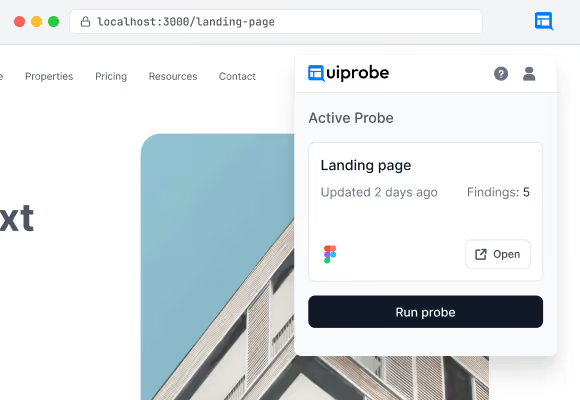
Most visual QA tools need a public URL. Uiprobe runs
wherever Chrome does — localhost, staging, pages behind a
login. Install it, open any page, run a probe.
The pages you
actually want to
probe aren't public.
The extension sits in the Chrome toolbar where you already
are. It reads the real DOM, the real computed tokens, the
real fonts the browser just loaded. No screenshots. No
second environment.
02
The loop
Point, probe, read.
Three steps. No tab-switching. No ruler. The same motion whether you're
on a public marketing page or a half-broken staging build.
01
Open the page
Navigate to whatever
you want to check.
Any URL Chrome can render. Localhost, staging,
a preview link, a live page — the extension
doesn't care which.
02
Paste the frame
Drop in the Figma frame URL.
Signed in with Figma once, the extension opens
your recent frames and resolves the URL right in
the popover — no separate integration step.
03
Hit run
Read the breakdown
in the web app.
A probe runs in place and saves to your account.
Open the full findings in the Uiprobe web app to
see exactly what diverged.
03
What you get back
Three lists. Each with
the exact values.
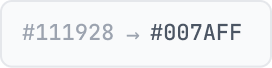
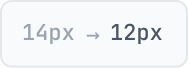
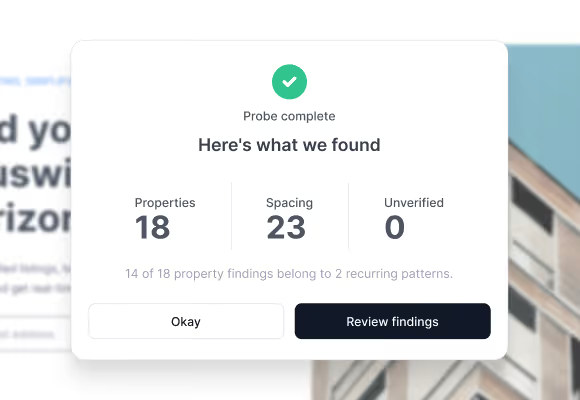
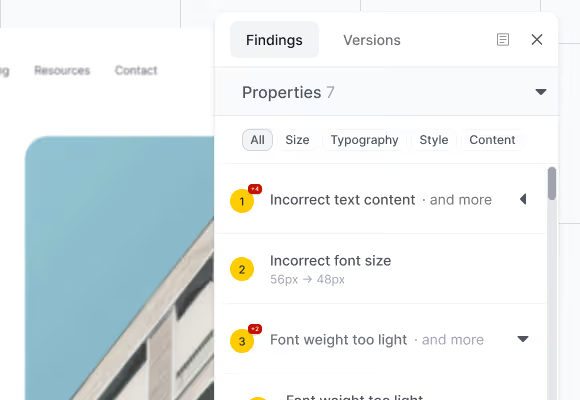
Findings are grouped by what was measured. Every row
includes the expected value (from the frame) and the
actual value (from the page) — no severity, no auto-fix, no
task queue.
Properties
Typography, colour, size, style.
Spacing
Gaps, padding, and distances between elements.
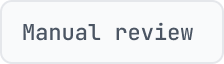
Unverified
Detected, not yet mapped to the frame. Inspect manually.
04
Versions & sharing
Every run sticks. Every
result is shareable.
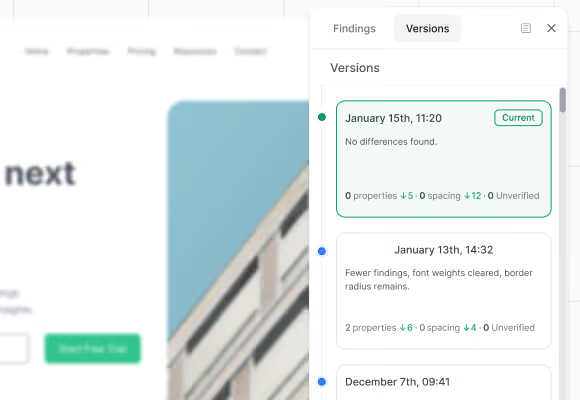
Fix the thing, run the probe again — the second run sits next
to the first with a delta, not on top of it. The trail is always
there for whoever asks about the regression a week later.
Share any version with a read-only link. Designers, clients,
PMs without the extension — they open the link in a browser
and see the same findings. No sign-in, no install.
05
Install
Four steps. About a minute.
No onboarding flow. No separate integration. Sign in with Figma once and
the extension handles the rest.
Requirements
What you need before installing.
A Chromium browser
Chrome, Arc, Brave or Edge. Any version from the last two years.
A Figma Dev or Full seat
Needed to read frames. Viewer seats can open shared probe links but
can't run new ones.
A Uiprobe account
Free. Created on first sign-in — no separate step.
Get started
The whole flow from empty toolbar to first probe.
1
Install from the Chrome Web Store
One click. The extension is free on every tier.
2
Pin the icon to your toolbar
So you can reach it without opening the extensions menu every time.
3
Sign in with Figma
Opens a Figma OAuth window. No API keys. No team-admin approval.
4
Paste a frame URL and hit run
The first probe usually lands in under a minute. Re-run as often as you like — each run
is a new version.
Stop pixel-peeping by hand.
Free to start. No credit card. See your first comparison in under a minute.

.png)