FOR AGENTIC CODING

The AI wrote the code. Now verify the UI.

The AI wrote
the code.
Now verify the UI.

Uiprobe compares your Figma design against AI-generated output and surfaces every visual difference with exact expected vs actual values.

Free forever for personal projects · No credit card

Uiprobe detecting an incorrect font size on a live web page, showing expected and actual values
01
the problem

AI-generated code compiles. The UI doesn't always match.

Cursor, Claude Code, and v0 generate working code fast. But LLMs take shortcuts, drop visual context as prompts grow, and prioritise logic over precision. The result compiles. It just doesn't always look like the design.
Spotting the drift manually means opening Figma and the browser side by side, eyeballing type sizes, toggling between tabs to check spacing values. Every iteration puts you back at the start of that process.
Generation and verification are two different problems. Most tools only solve the first.
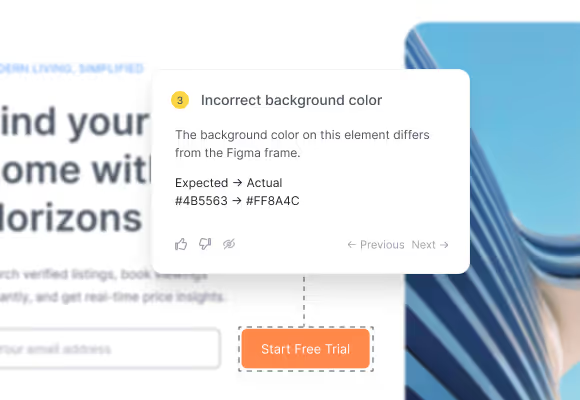
Annotation card showing an incorrect background color with expected and actual hex values
02
why it drifts

LLMs don't see the design. They infer it.

When an AI coding tool reads a Figma frame, it approximates. Font weights get rounded, spacing tokens get dropped, colours shift. The longer the context runs, the more those approximations compound. What renders isn't an implementation of your design. It's the AI's best guess at it.
03
the verification gap

Every finding shows what was expected and what was built.

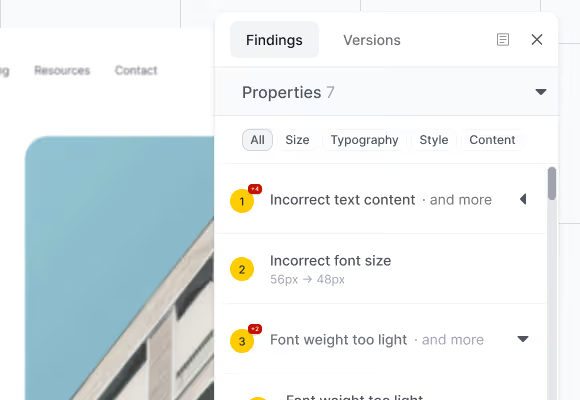
Uiprobe doesn't flag that something looks different. It tells you what the Figma spec says and what the rendered page has, for every finding. Incorrect font weight: expected 600, actual 400. That's what you need to write a precise correction or make the fix yourself.
Findings panel showing property findings grouped by type with category filters
04
how it works

From Figma frame to verified output in seconds.

Three steps. No setup beyond a Figma sign-in.
Step 01

Paste the URLs.

Provide the Figma frame URL and the webpage URL. That's the only input Uiprobe needs.
Step 02

Uiprobe runs the comparison.

Uiprobe reads your Figma spec and the rendered output and surfaces every visual difference as a finding.
Step 03

Review the findings.

Each finding shows the property that differs, the expected value from Figma, and the actual value on the page. Fix the prompt, update the component, re-run.

Verify what the AI built before you ship it

Sign in with Figma. Point Uiprobe at the page. See every difference in seconds.

Footer: NO CREDIT CARD · WORKS WITH ANY FIGMA SEAT

© 2026 · Built by UIPROBE