FOR WEBFLOW

Your Figma design and your Webflow site are not the same thing

Your Figma design and your Webflow site are not the same thing

Uiprobe compares your Figma frame against the published Webflow page and surfaces every visual difference: typography, colour, spacing, with exact values.

Free forever for personal projects · No credit card

Uiprobe detecting an incorrect font size on a live web page, showing expected and actual values
01
the problem

Webflow's visual editor doesn't guarantee Figma fidelity.

Figma is the source of truth. Webflow is where it gets built. But between the two, things shift. Type sizes get rounded, spacing classes don't map to Figma values, colour tokens drift. The editor looks right until you compare it to the frame.
Manual comparison means opening Figma and your Webflow staging URL side by side, switching between tabs, eyeballing padding and font weight. At a page level it's workable. Across a full site build, it doesn't scale.
Uiprobe reads both and tells you exactly where they differ.
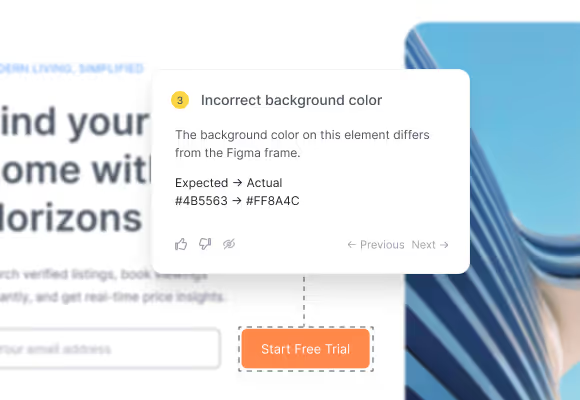
Annotation card showing an incorrect background color with expected and actual hex values
02
why it drifts

Webflow builds to its own logic. Figma specs don't always survive it.

Webflow's class-based spacing model and Figma's auto-layout don't map one-to-one. A spacing value precise in Figma becomes an approximation in a Webflow combo class. A font size on a paragraph style rounds differently than a text layer. Small enough to miss manually. Consistent enough to matter at scale.
03
the verification step

Every finding shows the Figma value and what Webflow rendered.

Uiprobe doesn't show you an overlay to eyeball. It tells you what the Figma spec says and what the rendered Webflow page has, for every finding: colour, font weight, spacing. Incorrect font size: expected 16px, actual 15px. That's the information you need to fix the class or update the frame.
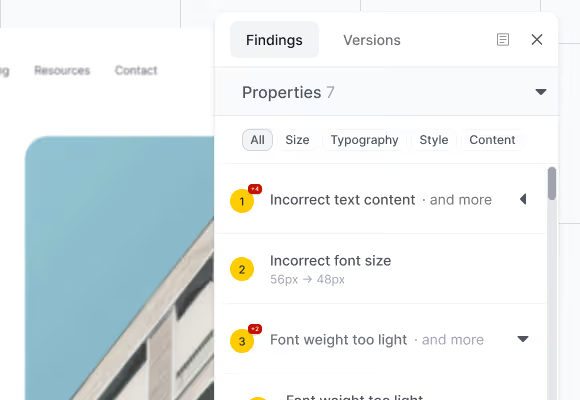
Findings panel showing property findings grouped by type with category filters
04
how it works

From Figma frame to verified Webflow page in seconds.

Three steps. No setup beyond a Figma sign-in.
Step 01

Paste the URLs.

Paste your Figma frame URL and your Webflow staging or published URL. The Chrome Extension covers password-protected staging domains.
Step 02

Uiprobe runs the comparison.

Uiprobe reads the Figma spec and the rendered Webflow page and surfaces every visual difference as a finding with exact values.
Step 03

Review the findings.

Findings are organised by Properties, Spacing, and Unverified. Fix the Webflow class, update the Figma frame, or note the accepted deviation, then re-run.

From the Learn section

We write about the gap
between design and code.

Practical articles on visual QA, design handoff, and getting Figma to code right.

See exactly where your Webflow build
diverges from Figma

Sign in with Figma. Point Uiprobe at the page. See every difference in seconds.

Footer: NO CREDIT CARD · WORKS WITH ANY FIGMA SEAT

© 2026 · Built by UIPROBE